
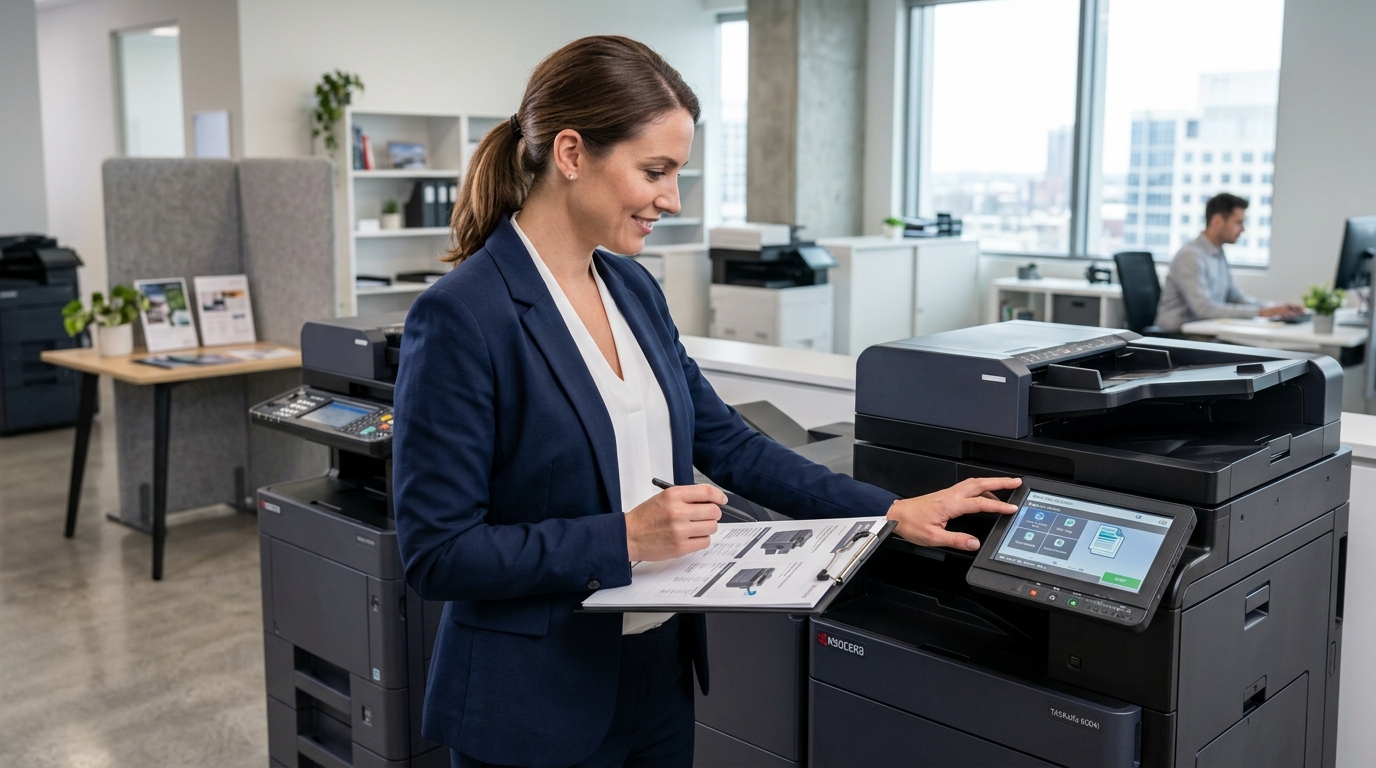
Selecting the right Kyocera copiers for your office starts with understanding what your employees need to print, copy, and scan each day. The right machine should support your expected workload, fit your budget, and provide the features necessary for your business without adding unnecessary complexity.
For businesses in Riverside County, San Bernardino County, and the Inland Empire, a structured comparison can make it easier to choose between available models and equipment arrangements.
Step 1: Estimate Your Monthly Print Volume
Start by determining how many pages your business produces each month.
Review current copier reports, supply purchases, or other available records. Estimate both average and peak demand, and consider whether your business is likely to grow.
Monthly volume helps establish an appropriate equipment category. It also provides a basis for comparing operating costs and deciding whether a smaller device or higher-capacity multifunction system is appropriate.
Do not choose a model based on maximum advertised speed alone. Look at its recommended workload and paper-handling capabilities as well.
Step 2: Decide Between Color and Monochrome
Consider whether your office regularly needs color output.
Color printing may be useful for marketing materials, charts, presentations, and customer documents. Black-and-white equipment may be sufficient for routine invoices, forms, and internal reports.
If both are important, compare the cost and practicality of a color multifunction copier against alternative equipment arrangements.
Also consider the types of paper and document sizes your employees use.
Step 3: Compare ECOSYS and TASKalfa Options
Kyocera’s ECOSYS and TASKalfa families include equipment for different printing and document-handling requirements.
ECOSYS includes printer and multifunction options that may suit smaller workgroups and offices. TASKalfa includes multifunction systems across a range of business workloads.
The right choice depends on the individual model. Compare print speed, recommended monthly workload, paper capacity, color capabilities, scanning features, and finishing options.
Ask for model-specific specifications rather than assuming every device within a product family has the same capabilities.
Step 4: Evaluate Scanning Features
If employees scan documents regularly, pay close attention to scanning performance.
Features to compare include automatic document feeding, two-sided scanning, supported file formats, and compatibility with email or shared-folder destinations.
Think about the documents your office processes most often. A business handling contracts and invoices may benefit from efficient multipage scanning, while another office may prioritize print capacity.
Confirm that the proposed device can work with your existing systems.
Step 5: Review Security Requirements
Copiers can process sensitive information, so evaluate security alongside performance.
Depending on the model, capabilities may include secure print release, user authentication, administrative access controls, and storage-management functions.
Coordinate with your IT team to establish the appropriate network configuration and access permissions.
Also consider how confidential documents will be collected and how stored data will be handled when equipment is returned or replaced.
Step 6: Compare Total Operating Costs
The price of the equipment is only one part of the decision.
Review toner and other consumables, paper, maintenance, repair expenses, and service agreement costs. If leasing, calculate the total scheduled payments and identify any additional fees.
Ask about expected cost per page based on your estimated usage, and clarify whether supplies or service are included in the proposal.
Compare alternatives over the same time period and using similar assumptions.
Step 7: Choose an Equipment Arrangement
Consider whether buying, leasing, or renting best suits your needs.
Buying may be appropriate if ownership is important and the upfront investment fits your budget.
Leasing may help spread equipment payments over a defined period. Review the complete contract, including service arrangements, early termination conditions, and end-of-term options.
Renting may suit short-term projects, events, or temporary office locations.
The best option depends on your usage, timeline, finances, and the terms available.
Step 8: Plan for Maintenance and Support
Before choosing a copier, ask how service requests are handled and what maintenance options are available.
Confirm whether parts, labor, and preventive maintenance are included, and clarify any exclusions. Make sure you understand the procedure for reporting recurring paper jams, print-quality issues, and persistent error messages.
Businesses in Riverside County and San Bernardino County should also verify that the provider supports their location and the selected model.
Step 9: Compare Kyocera With Other Brands
Although you may be considering Kyocera, it can be useful to compare relevant Xerox, Sharp, Ricoh, and Canon models.
Evaluate the actual equipment rather than relying on general brand claims. Compare workload, scanning, paper capacity, security, supply costs, and service support.
This makes it easier to identify the device that meets your needs at a reasonable total cost.
Find the Right Kyocera Copier for Your Office
Choosing the right copier requires balancing performance, features, operating expenses, and support. A clear understanding of your print volume and document workflow will help narrow your options.
Printer Copier Guys helps businesses in the Inland Empire explore copier leasing, rental, maintenance, and repair solutions.
Ready to compare Kyocera copier options? Contact Printer Copier Guys to discuss your business’s printing needs, budget, and equipment priorities.