
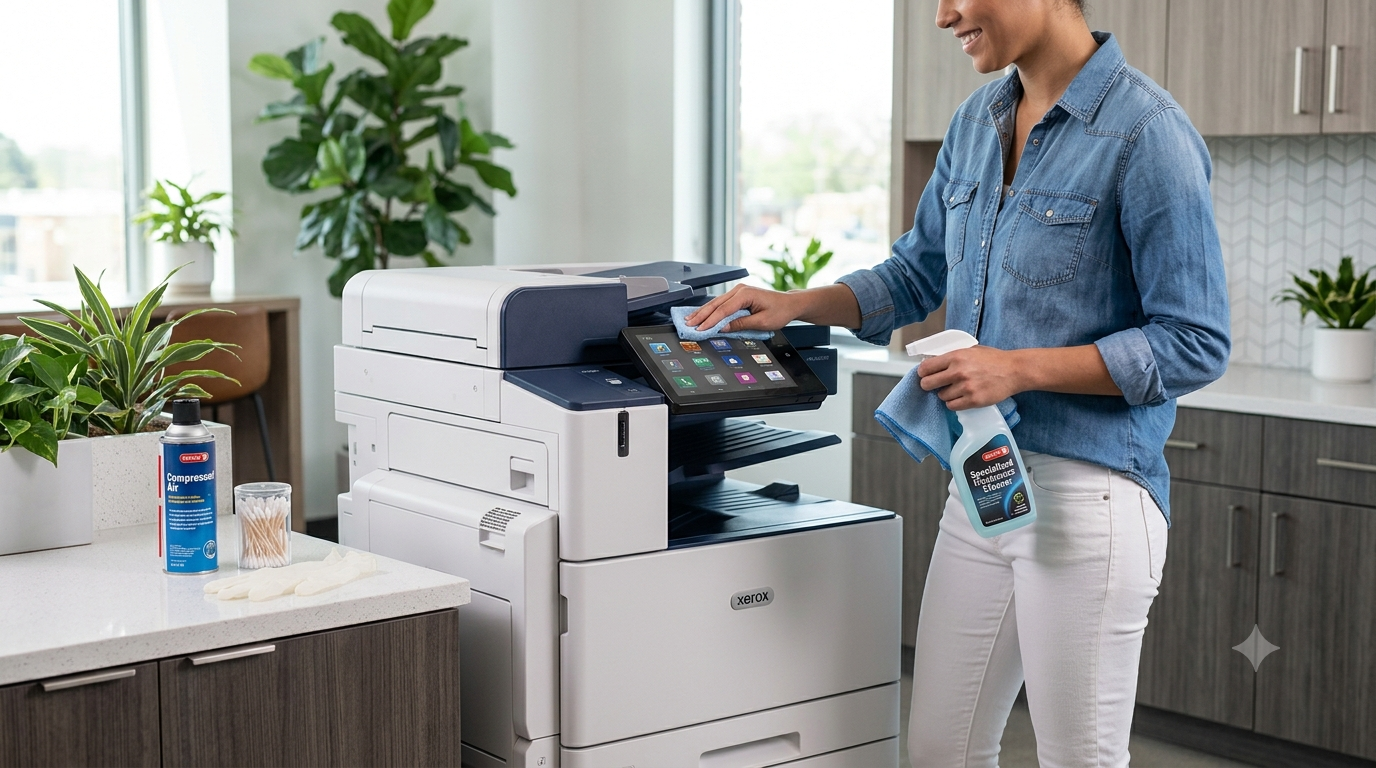
If you’ve noticed streaky prints, blurry scans, or paper jams becoming more common, your copier may not need an expensive repair—it may simply need a good cleaning. Knowing how to clean office copier equipment properly is one of the easiest ways to improve print quality, reduce downtime, and extend the life of your machine.
Like any office equipment that’s used every day, copiers collect dust, toner residue, fingerprints, and tiny bits of paper over time. These everyday contaminants can affect performance if they’re allowed to build up. Fortunately, a little routine cleaning goes a long way.
That said, it’s important to understand that not every part of a copier is meant for DIY maintenance. While basic office copier cleaning is safe and recommended, certain internal components should always be serviced by trained technicians. Knowing the difference can help you avoid accidental damage and costly repairs.
In this guide, we’ll walk you through safe cleaning practices, explain which parts you should never touch, and show you when it’s time to call a professional.
Why Regular Copier Cleaning Matters
Your office copier works hard every day. Whether you’re printing contracts, invoices, reports, or presentations, each job introduces a little more dust, toner, and paper debris into the machine.
Without regular cleaning, these materials can build up and cause problems such as:
- Poor print quality
- Streaks or smudges on documents
- Dirty or blurry scans
- Frequent paper jams
- Reduced reliability
- Premature wear on internal components
Routine copier maintenance doesn’t just help your copier look clean—it helps it perform better.
Some of the biggest benefits include:
Better Print Quality
Dust and fingerprints on the scanner glass or debris near the paper path can affect copies and scans. Keeping these surfaces clean helps produce sharp, professional-looking documents.
Fewer Paper Jams
Paper scraps and dust often collect around paper trays and feed areas. Removing this debris helps paper move smoothly through the copier.
Cleaner Scans
One of the most common causes of black lines on scanned documents is a dirty scanner glass. Regular cleaning can quickly solve this issue.
Longer Equipment Life
Keeping dirt and dust from accumulating reduces unnecessary strain on moving parts and helps extend the lifespan of your copier.
Lower Repair Costs
Routine maintenance often prevents small issues from becoming expensive repairs later.
Safe Ways to Clean Your Office Copier
If you’re wondering how to clean a copier safely, the good news is that most routine cleaning only requires a few simple tools and a little care.
Follow these best practices every time you clean your copier.
Turn Off and Unplug the Copier
Always power down the copier before cleaning.
This protects both you and the equipment while preventing accidental button presses or electrical issues.
Use a Soft Microfiber Cloth
A clean, lint-free microfiber cloth is ideal for wiping down exterior surfaces.
Avoid using paper towels or rough cloths that may scratch plastic panels or leave behind fibers.
Never Spray Cleaner Directly on the Copier
Instead, lightly dampen your cloth with an approved cleaning solution or water.
Spraying liquids directly onto the machine allows moisture to seep into electronic components, potentially causing damage.
Clean the Exterior
Wipe down:
- Control panels
- Covers
- Handles
- Output trays
- Exterior surfaces
Removing fingerprints and dust keeps your copier looking professional and prevents grime from entering the machine.
Clean the Scanner Glass Carefully
The scanner glass is one of the most important areas to keep clean.
Use a microfiber cloth with a small amount of glass cleaner applied to the cloth—not directly to the glass.
Be sure to clean both:
- The large scanner glass
- The narrow strip of glass used by the automatic document feeder (ADF)
Even tiny smudges can create black lines or blurry scans.
Remove Dust from Accessible Paper Trays
Pull out paper trays and gently remove loose dust or paper particles.
A dry microfiber cloth works well for this step.
Avoid inserting tools or reaching deep inside the copier.
Use Only Approved Cleaning Products
Some household cleaners contain chemicals that may damage copier plastics or coatings.
When in doubt, consult your copier’s manual or ask your service provider which cleaning products are safe.
Copier Components You Should Never Touch
While basic office copier care is encouraged, several internal components require specialized training and should never be cleaned or serviced by untrained users.
These include:
Drum Units
The drum is extremely sensitive to light, dust, and scratches.
Touching it can permanently damage print quality.
Fuser Assembly
The fuser operates at very high temperatures.
Even after the copier is turned off, it may remain hot enough to cause burns.
Transfer Belts
Transfer belts are precision components that help move toner onto paper.
Cleaning or touching them incorrectly may result in expensive repairs.
Laser Assemblies
Laser optics must remain perfectly aligned.
Improper handling can affect image quality or disable the copier.
Internal Sensors
Many paper path sensors are delicate and difficult to access.
Accidentally bending or damaging them may create ongoing paper jam errors.
Electrical Components
Never attempt to clean wiring, circuit boards, or electrical connections.
Doing so can create safety hazards and cause equipment failure.
Although it may be tempting to “fix” an issue yourself, attempting to clean these parts without proper training often creates bigger problems than the original issue.
A Simple Weekly Copier Maintenance Checklist
A few minutes each week can help prevent many common copier issues.
Use this simple printer maintenance checklist as part of your office routine.
Weekly Copier Maintenance Checklist
✔ Wipe down the copier exterior with a microfiber cloth.
✔ Clean the scanner glass and automatic document feeder glass.
✔ Remove dust around paper trays.
✔ Check for loose paper scraps.
✔ Store unused paper in a cool, dry location.
✔ Replace toner cartridges when needed.
✔ Look for unusual noises during operation.
✔ Check for warning lights or error messages.
✔ Inspect printed documents for streaks, smudges, or fading.
✔ Report recurring issues before they become major problems.
Creating a regular maintenance schedule helps keep your copier operating efficiently while minimizing unexpected downtime.
DIY Cleaning vs. Professional Copier Maintenance
Knowing what you can safely do yourself—and when to call a technician—is one of the best ways to protect your investment.
Safe DIY Tasks
Most office staff can safely perform these maintenance tasks:
- Cleaning the scanner glass
- Wiping exterior surfaces
- Removing dust around paper trays
- Replacing toner cartridges
- Removing visible paper jams
- Checking paper supply and storage conditions
These simple tasks help improve day-to-day performance without risking damage.
Leave These Jobs to Professionals
Professional copier technicians should handle:
- Internal cleaning
- Drum replacement
- Fuser repairs
- Roller replacement
- Preventive maintenance
- Copier calibration
- Diagnosing recurring paper jams
- Troubleshooting print quality problems
- Repairing internal components
Professional multifunction printer maintenance includes much more than cleaning. Technicians inspect wear parts, identify developing issues, update settings when needed, and ensure your copier continues operating at peak performance.
Preventive maintenance often catches small problems before they become expensive breakdowns.
Signs Your Copier Needs Professional Cleaning or Service
Sometimes routine cleaning isn’t enough.
If any of the following issues continue after you’ve cleaned your copier, it’s time to schedule professional copier service.
Frequent Paper Jams
Occasional jams happen.
Repeated jams usually indicate worn rollers, damaged sensors, or internal debris that requires professional attention.
Streaks or Smudges on Prints
Persistent print defects often point to worn drums, dirty internal rollers, or toner-related issues.
Black Lines on Copies or Scans
If cleaning the scanner glass doesn’t eliminate black lines, additional service may be needed.
Unusual Noises
Grinding, clicking, or squealing sounds can signal worn gears, rollers, or other mechanical components.
Error Codes
Modern copiers are designed to detect internal problems.
If error messages continue appearing, don’t ignore them.
Toner Leaking Inside the Copier
Visible toner buildup inside the machine often requires professional cleaning and inspection.
Ongoing Print Quality Problems
If documents remain faded, blurry, spotted, or inconsistent after routine cleaning, professional diagnosis is recommended.
Addressing these warning signs early often prevents more extensive—and more expensive—repairs later.
Keep Your Copier Running Its Best
Learning how to clean office copier equipment properly is one of the simplest ways to improve print quality, reduce downtime, and extend the life of your office technology.
By following a simple weekly cleaning routine, using safe cleaning methods, and avoiding delicate internal components, you can keep your copier operating reliably while preventing many common issues before they start.
Just as importantly, recognize when a problem requires professional attention. While regular cleaning is something almost anyone can do, expert maintenance ensures your copier continues performing efficiently for years to come. Professional inspections can catch worn parts, prevent unexpected breakdowns, and help protect your investment.
Keep Your Office Copier Performing at Its Best
Need help keeping your office copier in top condition?
Printer Copier Guys provides professional copier cleaning, preventive maintenance, repairs, and copier service for businesses throughout Southern California. Whether you need routine maintenance, troubleshooting, or expert repairs, our experienced technicians are ready to help keep your office running without interruption.
Contact Printer Copier Guys today to schedule professional copier maintenance and ensure your office equipment stays reliable, efficient, and ready for every workday.